

API integration quickstart
Create your first order with the REST API in under 5 minutes.
You'll make a working order in four steps: create an API token, list services, create an order, and open it for review.
1. Create an API token
API access has to be enabled for your organization before you can create a token, ask your Relu admin (or email support@relu.ai) to turn it on.
Once enabled, log in to the Relu Automate platform, open Settings → Develop, and click New API Key:
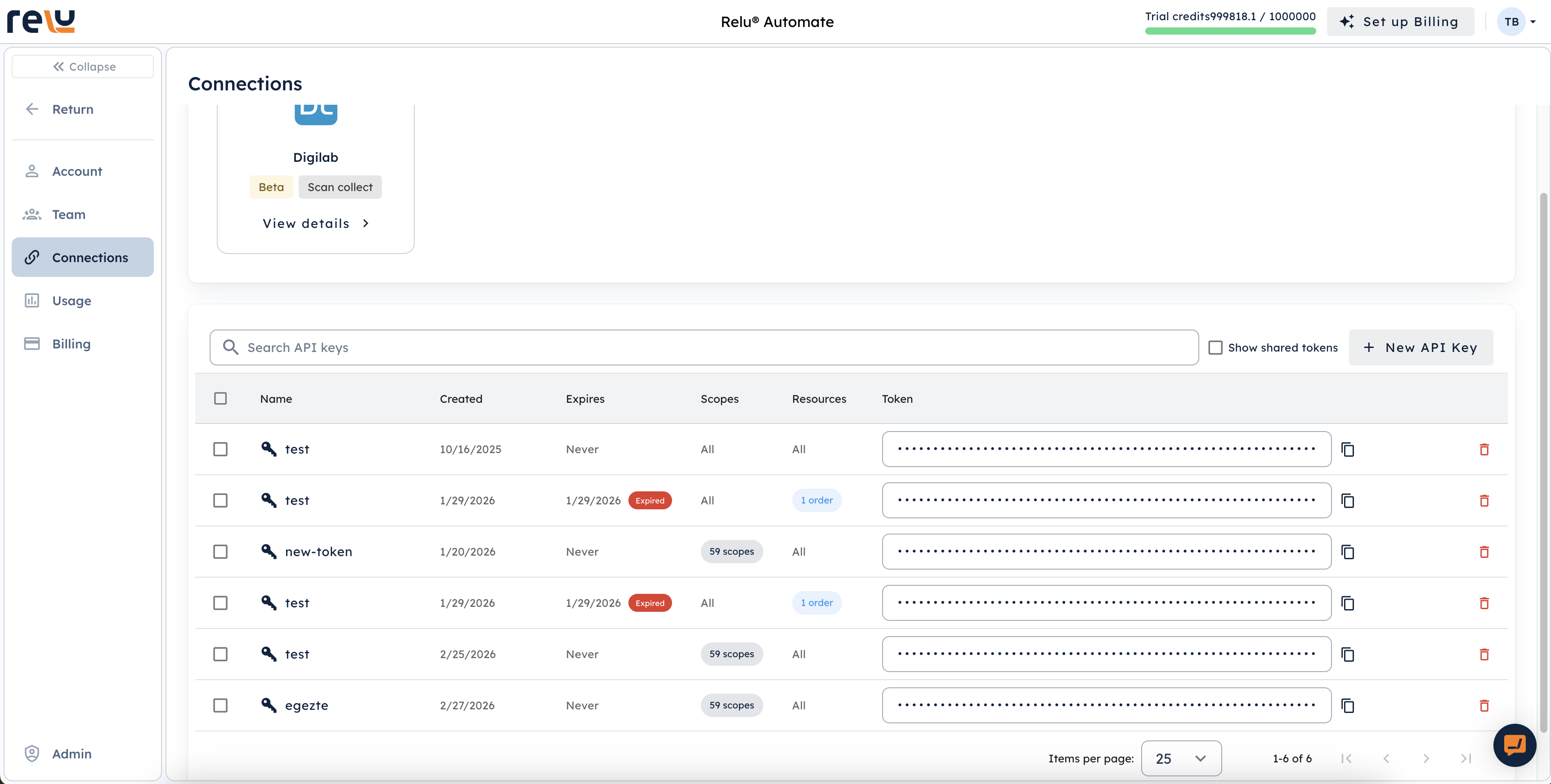
Give the token a name, pick the scopes it needs, and copy the key that appears. Treat it like a password.
2. List available services
import requests

response = requests.get(
    "https://api.automate.relu.ai/services",
    headers={"X-API-Key": "<your_api_token>"},
)
print(response.json())
const res = await fetch('https://api.automate.relu.ai/services', {
headers: { 'X-API-Key': process.env.RELU_API_TOKEN },
});
console.log(await res.json());Pick a service from the response and note its id (UUID) — you'll pass it as service_id when creating the order.
Skip the schema digging
Easiest way to get a working request body: on a service card in the platform
UI, open the three-dots menu → View API
Example. It copies a ready-to-run POST /orders snippet with the right
service_id, input_data, and parameter_values keys for that service.
3. Create an order
Use the generic order route POST /orders and pass service_id in the body.
Input names differ per service
Input keys like lower_jaw, volume, upper_jaw depend on the service
you're running. The example below uses Model Builder; yours will differ — use
the View API Example snippet above, or fetch GET /services/{id} for the
exact input and parameter schemas.
response = requests.post(
    "https://api.automate.relu.ai/orders",
    json={
        "service_id": "<service-uuid from step 2>",
        "order_name": "My first order",
        "input_data": {
            "lower_jaw": {
                "external_download_url": "https://…/lower.stl",
                "extension": ".stl",
            }
        },
        "parameter_values": {
            # service-specific — check GET /services/{id}
        },
        # output_data is optional. By default, all of the service's outputs
        # are produced and stored on the platform. Set this only if you
        # want Relu to PUT specific outputs to your own storage.
    },
    headers={"X-API-Key": "<your_api_token>"},
)
print(response.json())
const res = await fetch('https://api.automate.relu.ai/orders', {
method: 'POST',
headers: {
'X-API-Key': process.env.RELU_API_TOKEN,
'Content-Type': 'application/json',
},
body: JSON.stringify({
service_id: '<service-uuid from step 2>',
order_name: 'My first order',
input_data: {
lower_jaw: {
external_download_url: 'https://…/lower.stl',
extension: '.stl',
},
},
parameter_values: {
// service-specific — check GET /services/{id}
},
// output_data is optional. By default, all of the service's outputs
// are produced and stored on the platform. Set it only if you want
// Relu to PUT specific outputs to your own storage.
}),
});
console.log(await res.json());You'll get back an order ID. Poll for results or receive a webhook callback.
Prefer presets over repeating parameters
Rather than listing parameter_values on every request, you can save a
configuration once in the platform UI as a preset
and reference it by preset_id. Send parameter_values alongside it only to
override specific keys for a given order.
4. Open the order
Use the id from the create-order response to give users separate browser and
desktop actions:
Browser: https://automate.relu.ai/viewer?orderId=<ORDER_ID>
Desktop: relu-automate://viewer?orderId=<ORDER_ID>
The viewer link supports services that open in the Relu Automate viewer, such as crowns and nightguards. If your integration does not know which viewer owns the service, open the order details dialog instead:
Browser: https://automate.relu.ai/orders?orderId=<ORDER_ID>&openDetails=1
Desktop: relu-automate://orders?orderId=<ORDER_ID>&openDetails=1
The desktop action requires Relu Automate Desktop. The user must be signed in and have access to the order. Browsers may ask for confirmation before opening the app. If the app is not installed, the custom URL has no handler, so keep the browser action available as a fallback.
Use the scheme that matches the installed desktop build:
| Environment | Scheme |
|---|---|
| Production | relu-automate:// |
| Staging | relu-automate-staging:// |
| Develop | relu-automate-dev:// |
Next steps
- Handle API errors and retries
- Learn about services and parameters
- See the full API reference
- Understand upload patterns